Shopify admin and Flow
From an order, product or customer
On an order, product or customer page in your Shopify admin, open More actions and choose the CommerceOps action. Pick the List, write the task, set priority, due date and assignee or Team, and create it without leaving Shopify.
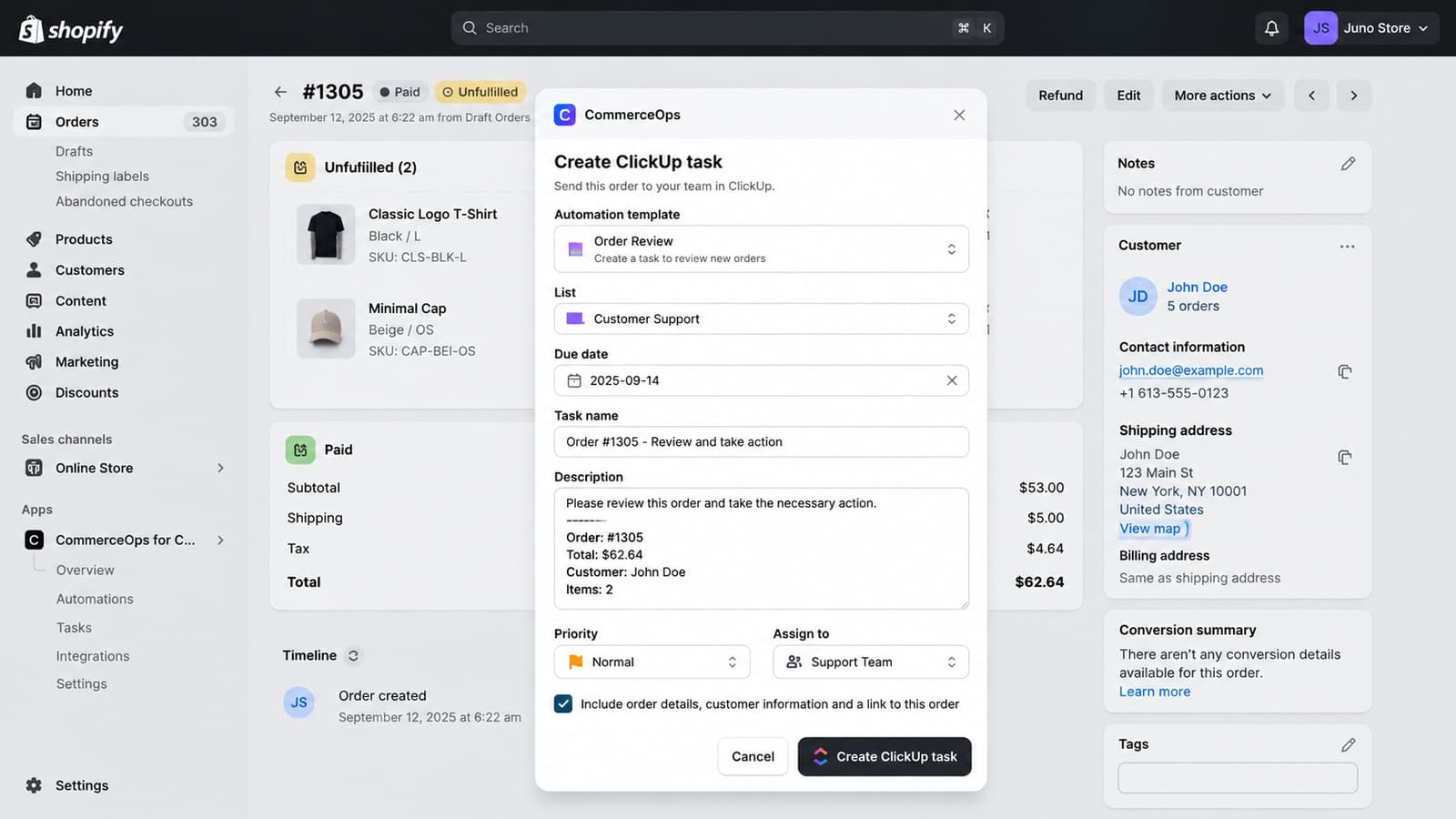
A CommerceOps block on the same page lists the tasks already linked to it, each with Open in ClickUp. One order, product or customer can have several tasks.
In Shopify Flow
- In Shopify Flow, add the Create ClickUp task action from CommerceOps.
- Click Configure task and choose the ClickUp List, and if you want, an assignee or Team, the priority and a due date.
- Use Flow variables in the task name and description.
You never need to copy a ClickUp List ID: CommerceOps remembers the List for that Flow step. If Flow sends the same step twice, CommerceOps creates the task only once.