Storefront widgets and branding
CartGift shows offers and progress in your store with theme app blocks. Add them in Online Store › Themes › Customize.
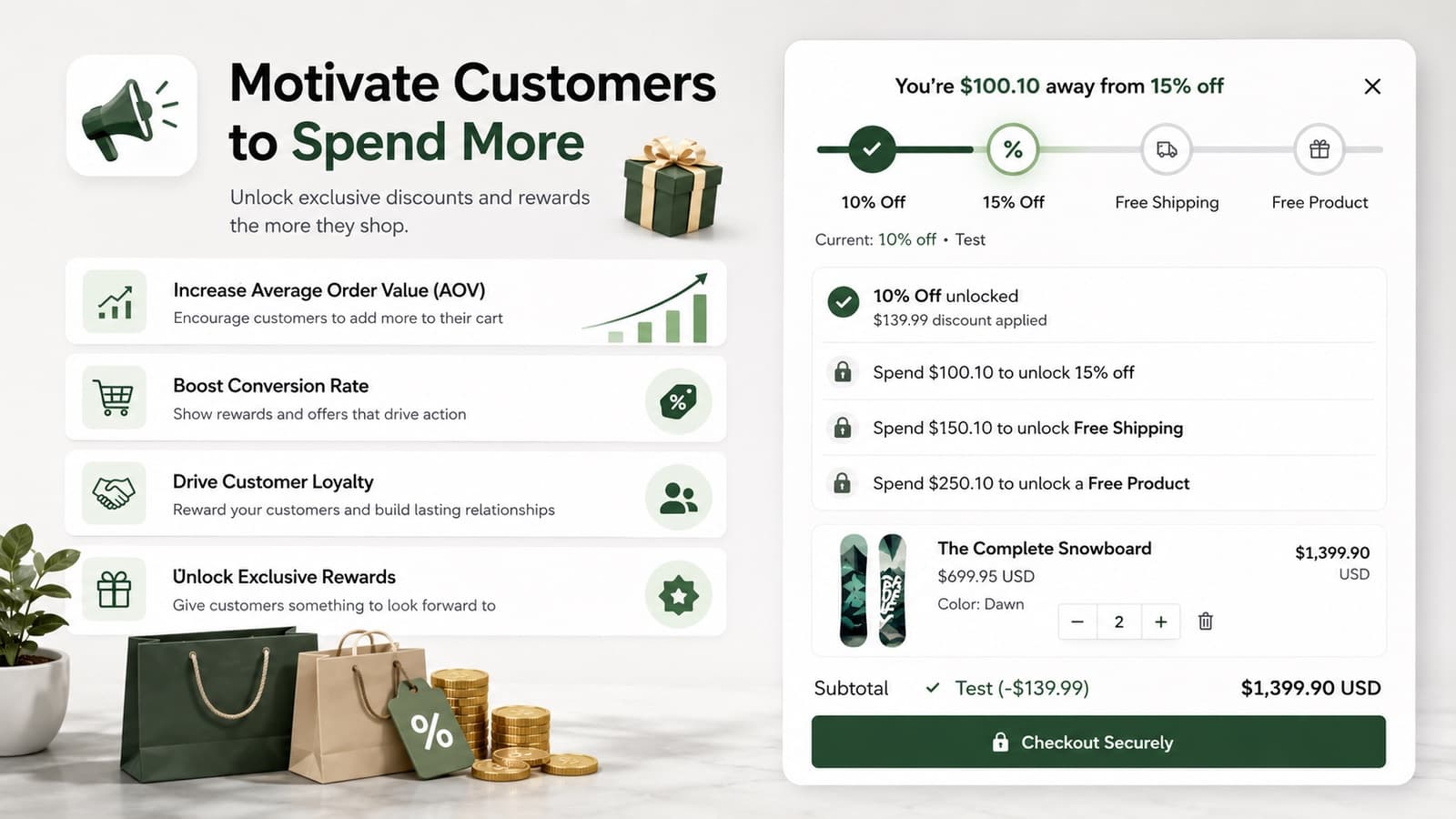
The widgets
| Block | Where | What shoppers see |
|---|---|---|
| CartGift: Cart Drawer | App embed, all pages | A floating bar and the progress bar inside your cart drawer. Choose top or bottom, the button label and whether to hide it on the cart page. |
| Cart Page Discount Widget | Cart template | The active offers and progress on the cart page. |
| PDP Product Promotions | Product template, near the buy buttons | The offers that apply to the product. |
The product page block shows a preview in the theme editor. In the live store it appears only on products that have a matching offer.
Settings
In the app’s Settings:
- Floating embed turns the floating widget on or off for the whole store.
- Cart drawer setup tells CartGift where your theme’s cart drawer is:
- Auto finds common cart drawers and suits most themes.
- Preset matches well-known drawer layouts.
- Advanced selector takes a CSS selector such as
#CartDraweror.cart-drawerfor custom themes.
Branding
Go to Branding and pick what to style: Cart Drawer, Floating Container or PDP Block. Each one has its own settings, so changing one does not change the others.
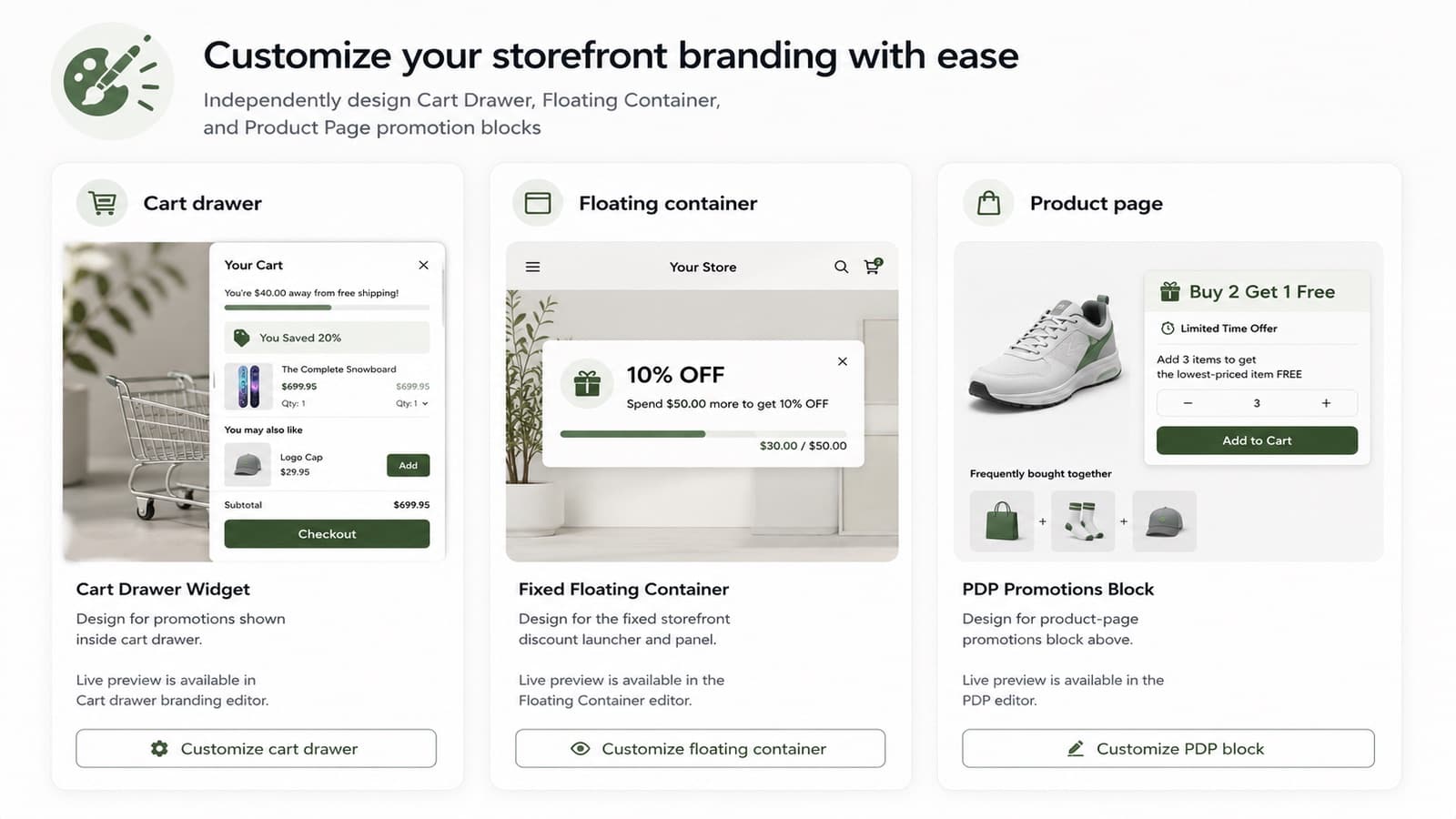
- Start from a preset.
- Check that text is easy to read on the background.
- Change colors: text, card background, progress fill and track, button background and text.
- Change the wording last, for example the empty drawer message and the Show details labels.
- Save and refresh your store to see the result.