Collections and search
Collection page
Open a collection in the theme editor (page selector › Collections › Default collection).
| Setting | What it does |
|---|---|
| Show collection image | Shows the collection image in the page header. Layout: text over image or split. |
| Show breadcrumbs | Shows the page path. |
| Enable filters | Shows filters from Search & Discovery. Filter layout on desktop: sidebar or drawer. |
| Enable sorting | Shows the sort menu. |
| Products per page | How many products per page. |
| Desktop columns / Columns on mobile | Grid columns. Mobile can show one or two. |
| Show grid density toggle | Lets customers switch the number of columns. |
| Pagination | Page numbers or a Load more button. |
Promotional cards
Add a Promotional card block to place an editorial card inside the product grid.
| Setting | What it does |
|---|---|
| Position in grid | After which product the card appears. |
| Card width | One or two columns. |
| Image, Eyebrow, Heading, Link label, Link, Color scheme | The card’s content. |
The card appears on the first page of each collection that uses the template.
Filters
Ani uses Shopify’s native filters. To set them up:
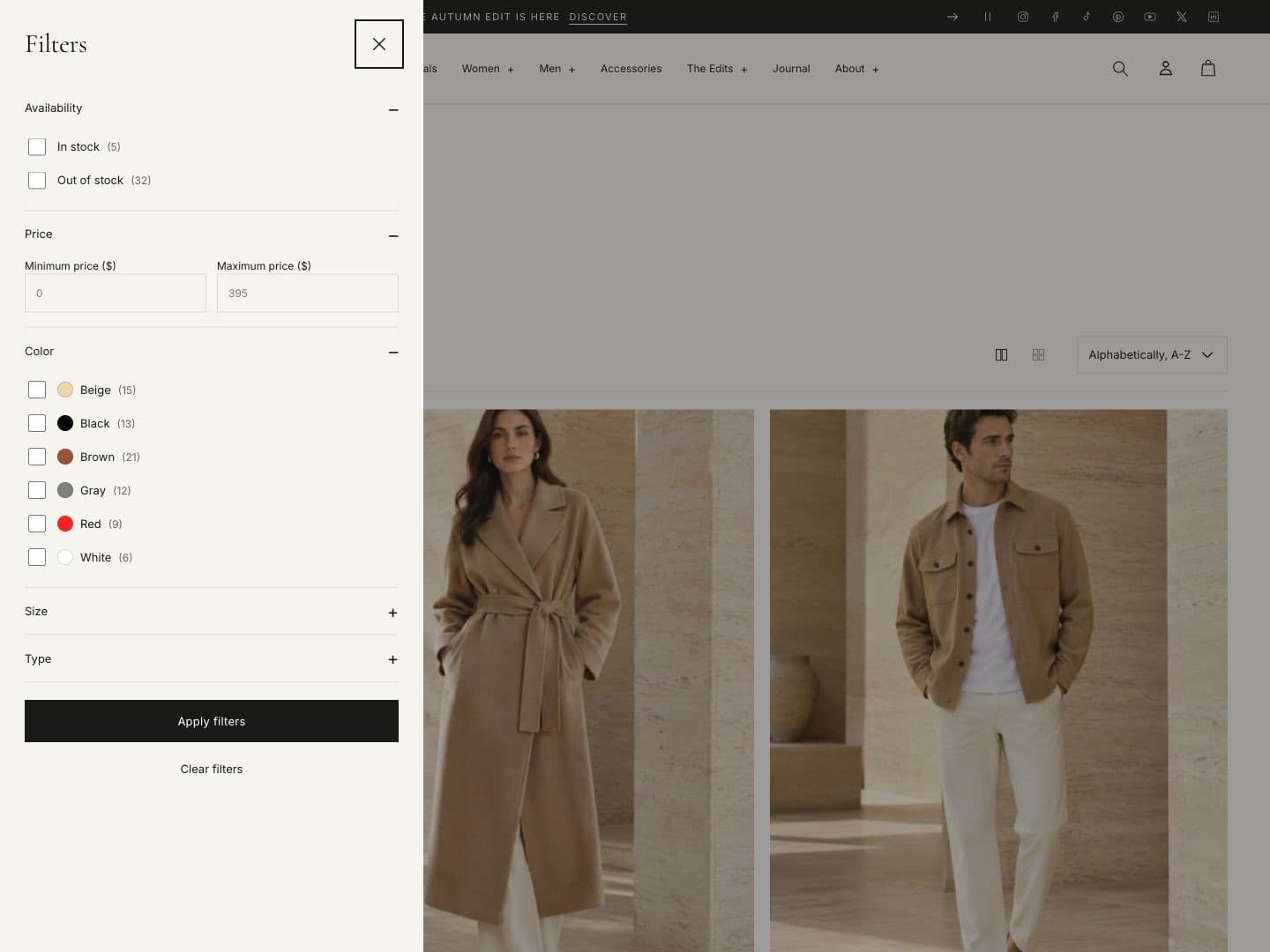
- Install the free Shopify Search & Discovery app.
- Open Filters and add the filters you need: availability, price, product type, vendor, tags, variant options and metafields.
- Make sure Enable filters is on in the Collection and Search sections.
Color filters show swatches when the color values come from the Color category metafield. The Shop by price section needs the Price filter.
Collections list page
The Collections section on the collections list page (/collections) shows all collections as cards, with
columns, image ratio, text position and product count.
Search
Theme settings › Search:
| Setting | What it does |
|---|---|
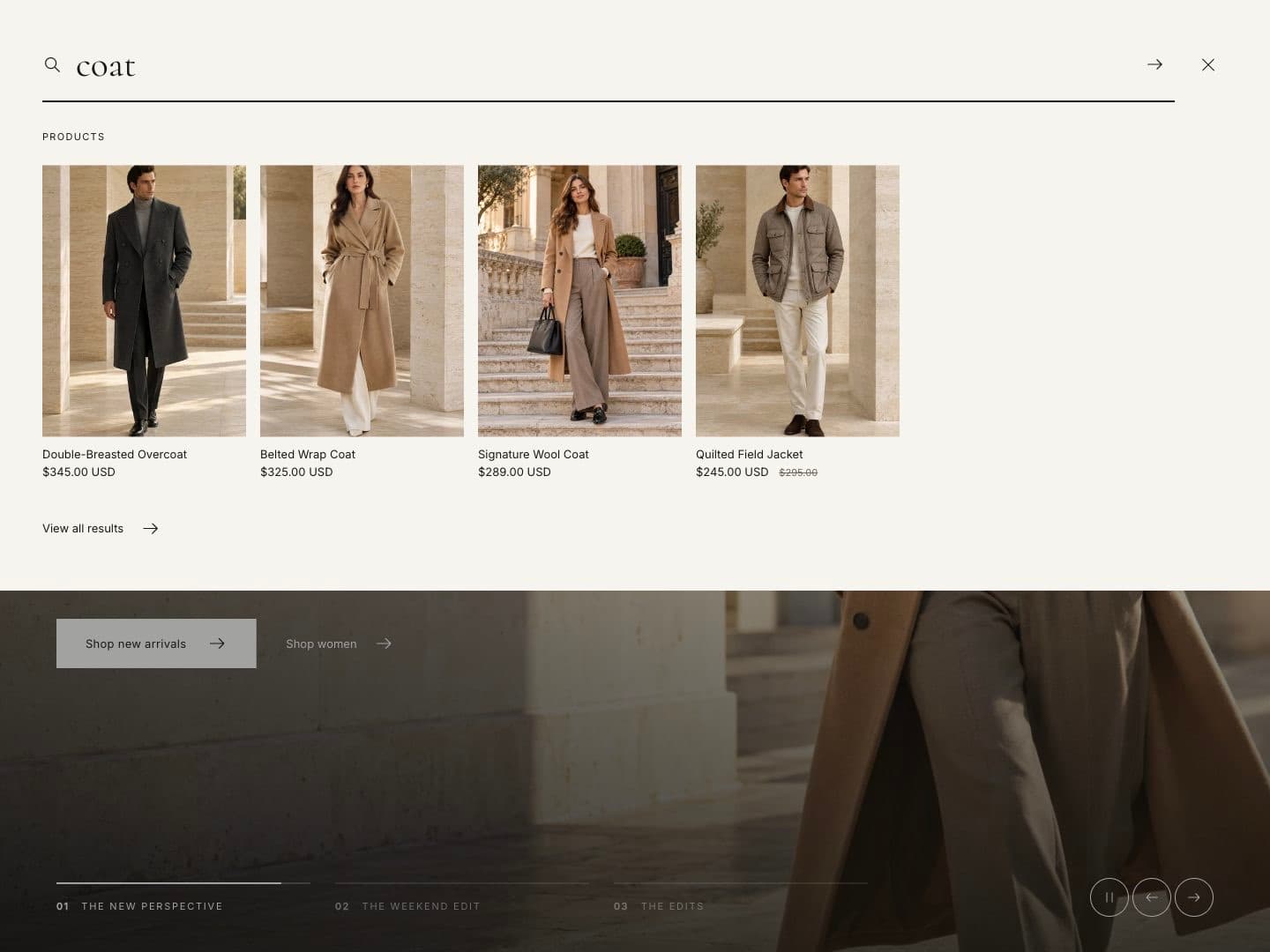
| Enable predictive search | Shows products, collections, pages and articles while the visitor types. |
| Show prices in search results | Shows product prices in suggestions. |
| Show brand | Shows the vendor in suggestions. |
| Popular searches menu | A menu whose links appear as popular searches before the visitor types. Create it in Online Store › Navigation. |
The search overlay can also show Suggested products from a collection you choose in the Search overlay section. The search results page has its own Search section with columns and suggested products for empty results.