Promotions
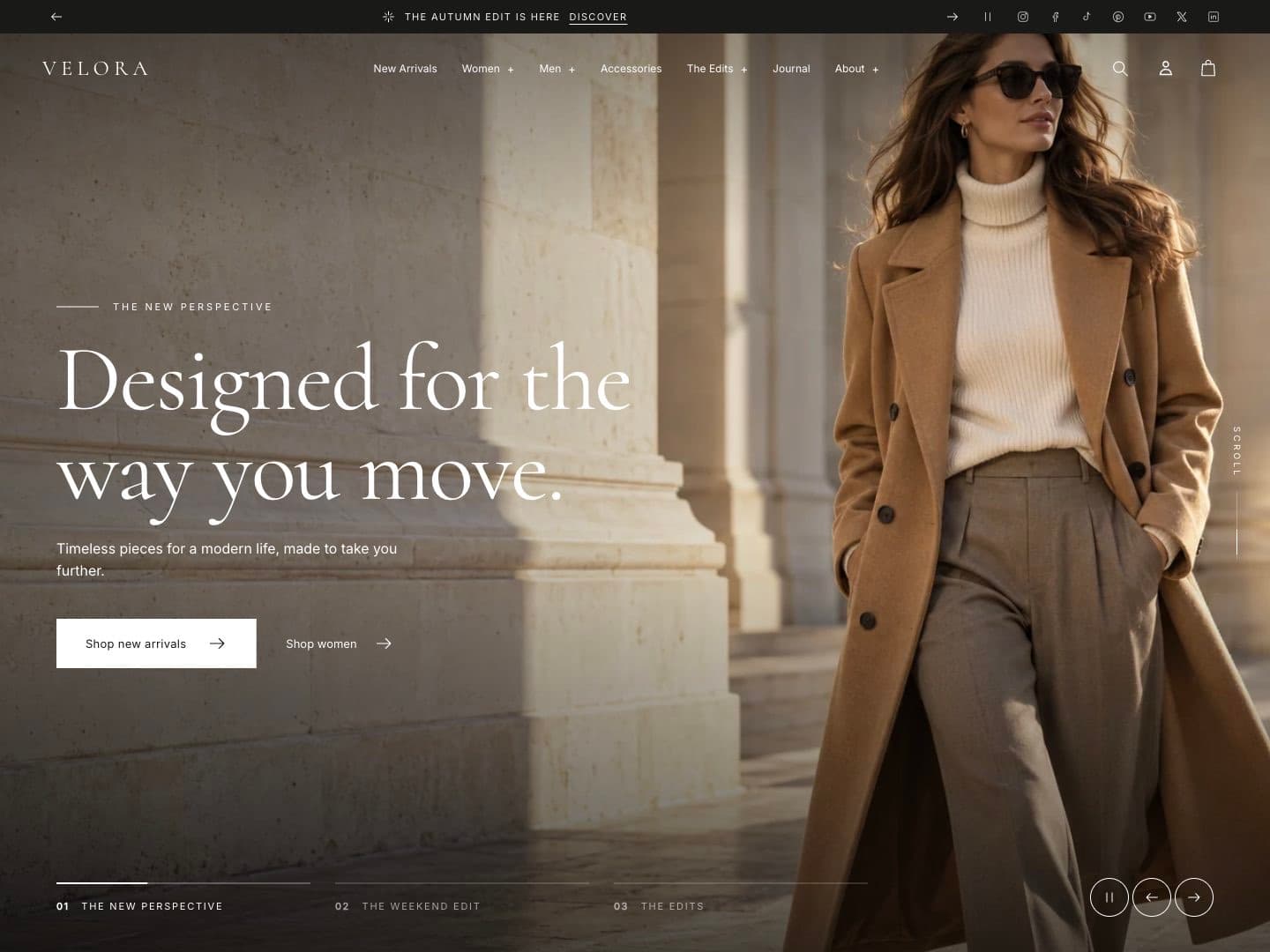
Announcement bar
The announcement bar sits above the header on every page.
| Setting | What it does |
|---|---|
| Display | Static, Ticker (scrolling) or Slider (one message at a time). |
| Text size, Uppercase, Show bottom border, Full width | Appearance. |
| Show social icons | Shows your social links in the bar. |
| Auto-rotate, Change every, Show arrows | Slider controls. |
| Ticker loop duration, Separator, Pause on hover | Ticker controls. |
Blocks:
- Announcement: text, an optional icon and link.
- Countdown timer: text with a live timer. When it ends, the announcement hides or shows a message.
Dates and times
Every countdown in Ani uses the format YYYY-MM-DD HH:MM in your store’s time zone, for example
2026-11-30 23:59. An optional start date keeps the timer hidden until then, so you can schedule a campaign in
advance.
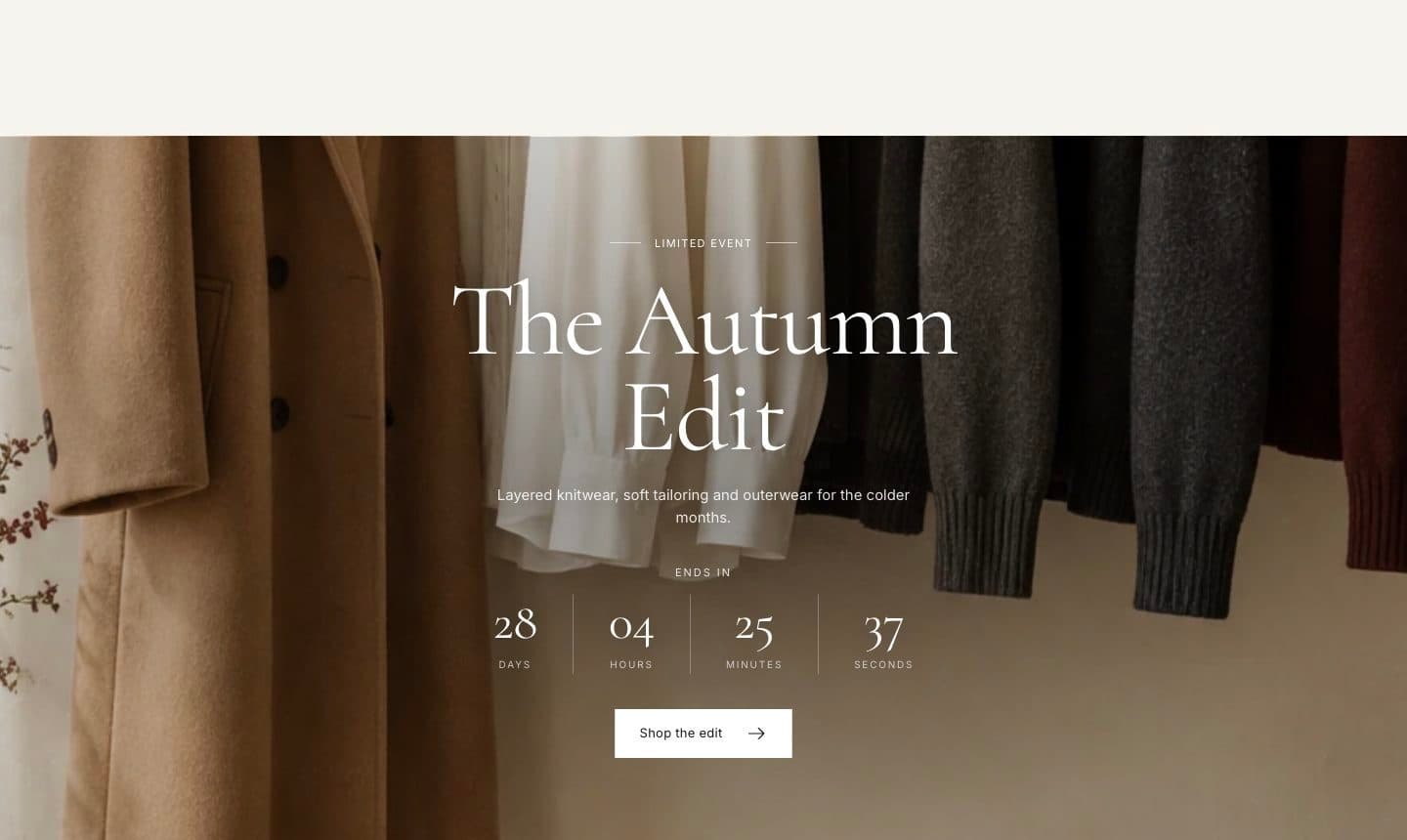
Sale countdown section
A full section for a sale or launch.
| Setting | What it does |
|---|---|
| End / start date and time | When the sale ends and, optionally, starts. |
| Timer style and size | Large numbers with dividers, Boxes, Large numbers with colons, or Inline. |
| When the timer ends | Hide the section, show a message, or keep showing 00:00. |
| Discount code | Shown with a copy button. Create the code in Discounts first. |
| Layout | Image background, image beside text, or compact band. |
| Collection, Products to show | Optional products from the sale collection. |
Countdowns are also available in the Hero, Image banner, each Slideshow slide and as a product page block.
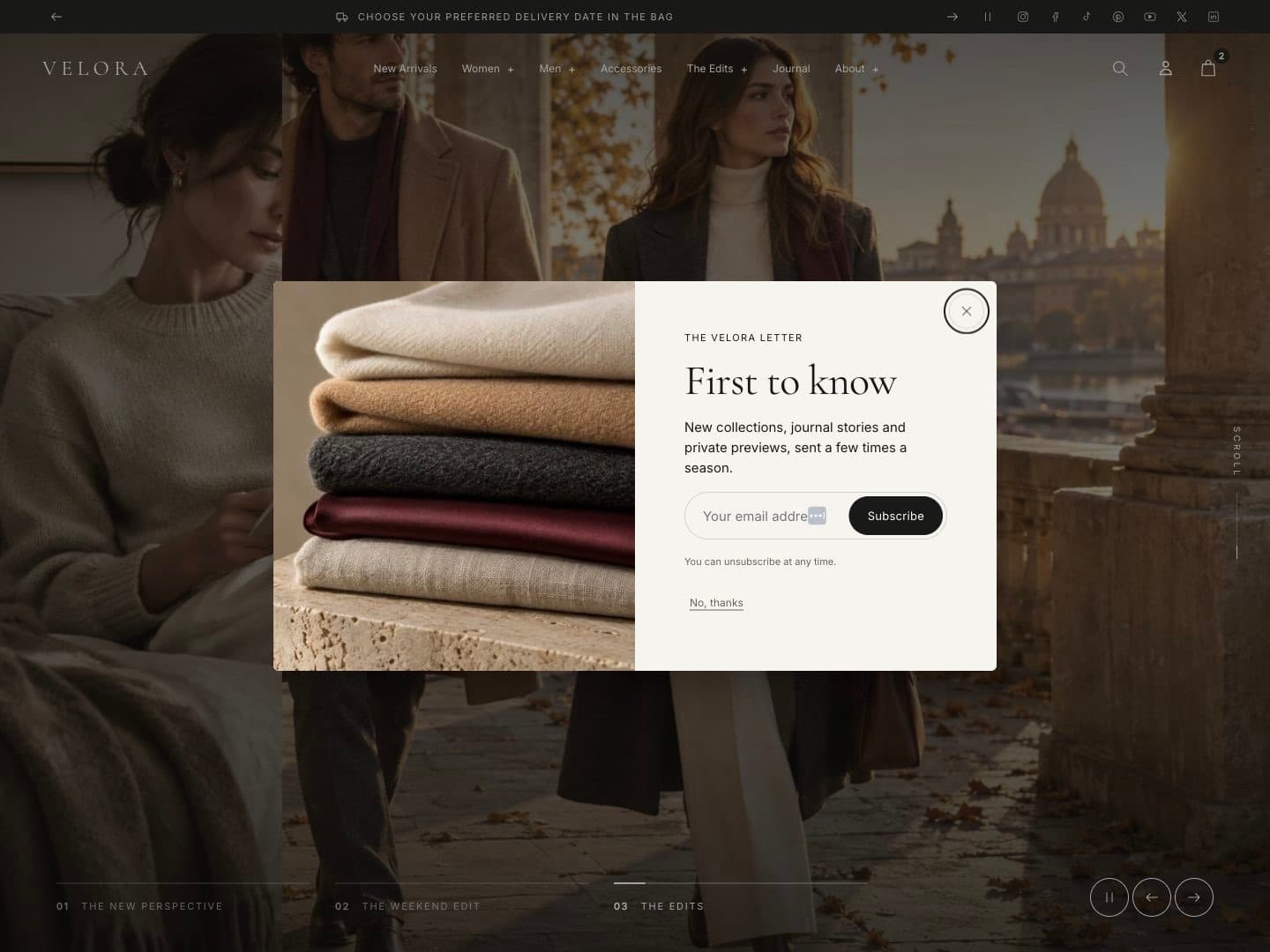
Pop-up
Add the Pop-up section in the overlays area of the theme editor.
| Setting | What it does |
|---|---|
| Open | After a delay, after scrolling, or when leaving the page (desktop). |
| Show again after | How many days before a visitor sees it again after closing it. |
| Show on | All pages or the home page only. |
| Campaign version | Change it to show a new campaign to visitors who closed the old one. |
| Show sign-up form | Collects email addresses as Shopify customers. Customer tags are added to new subscribers. |
| Discount code | Shown after sign-up or with the offer. |
| Layout, Position, Text alignment, Image | Appearance. |
Check your local rules for email marketing consent and pop-ups. Ani only shows one pop-up and never blocks the page for search engines.
Gift card section
Promotes your gift card product with a card preview that shows the store name or logo and the selected amount.
Choose the product in Gift card product; by default Ani uses the product with the handle gift-card.
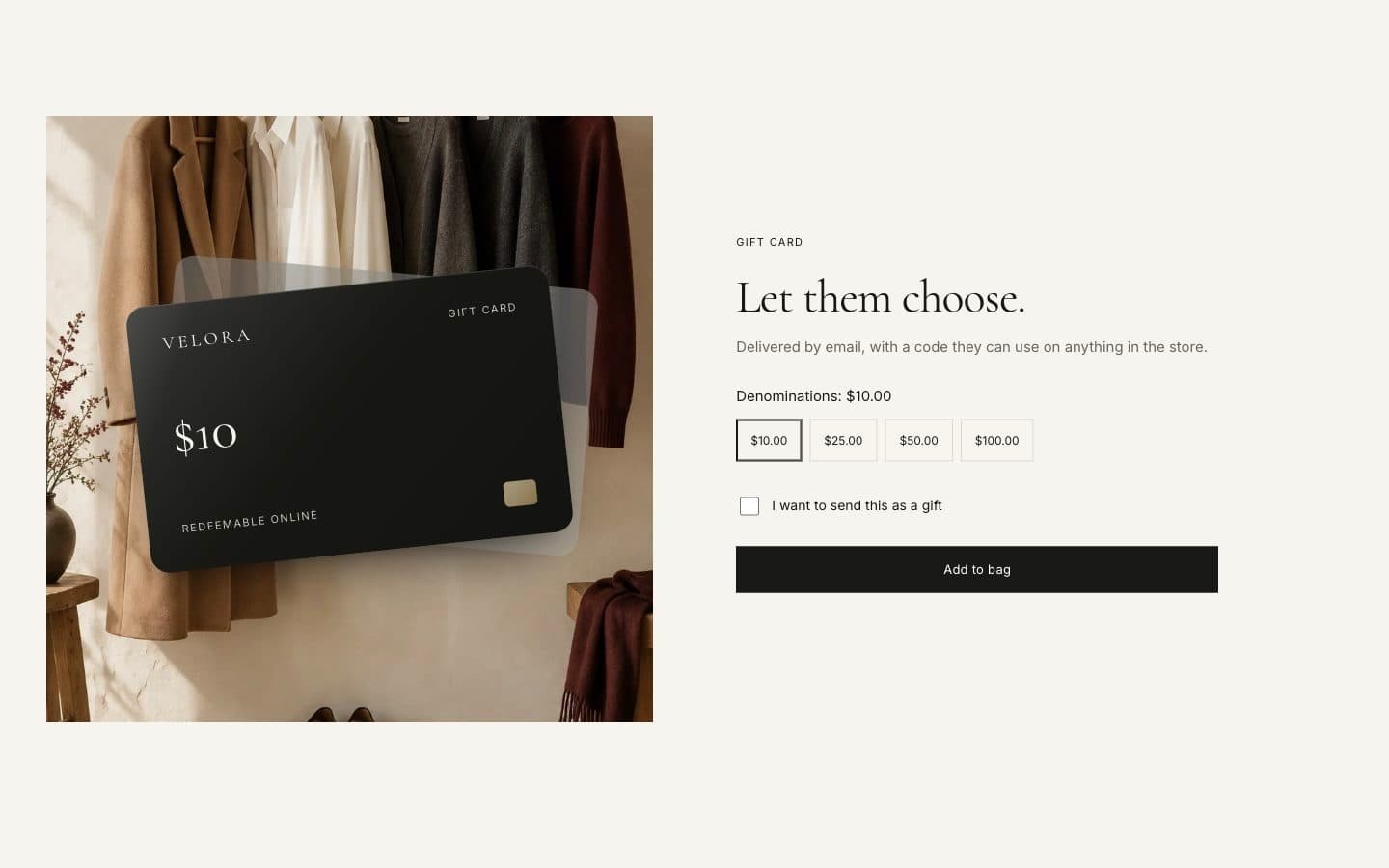
Gift card products also let customers send the card to a recipient with a name, message and send date. The gift card page itself shows a QR code, a copy button, print and Apple Wallet.
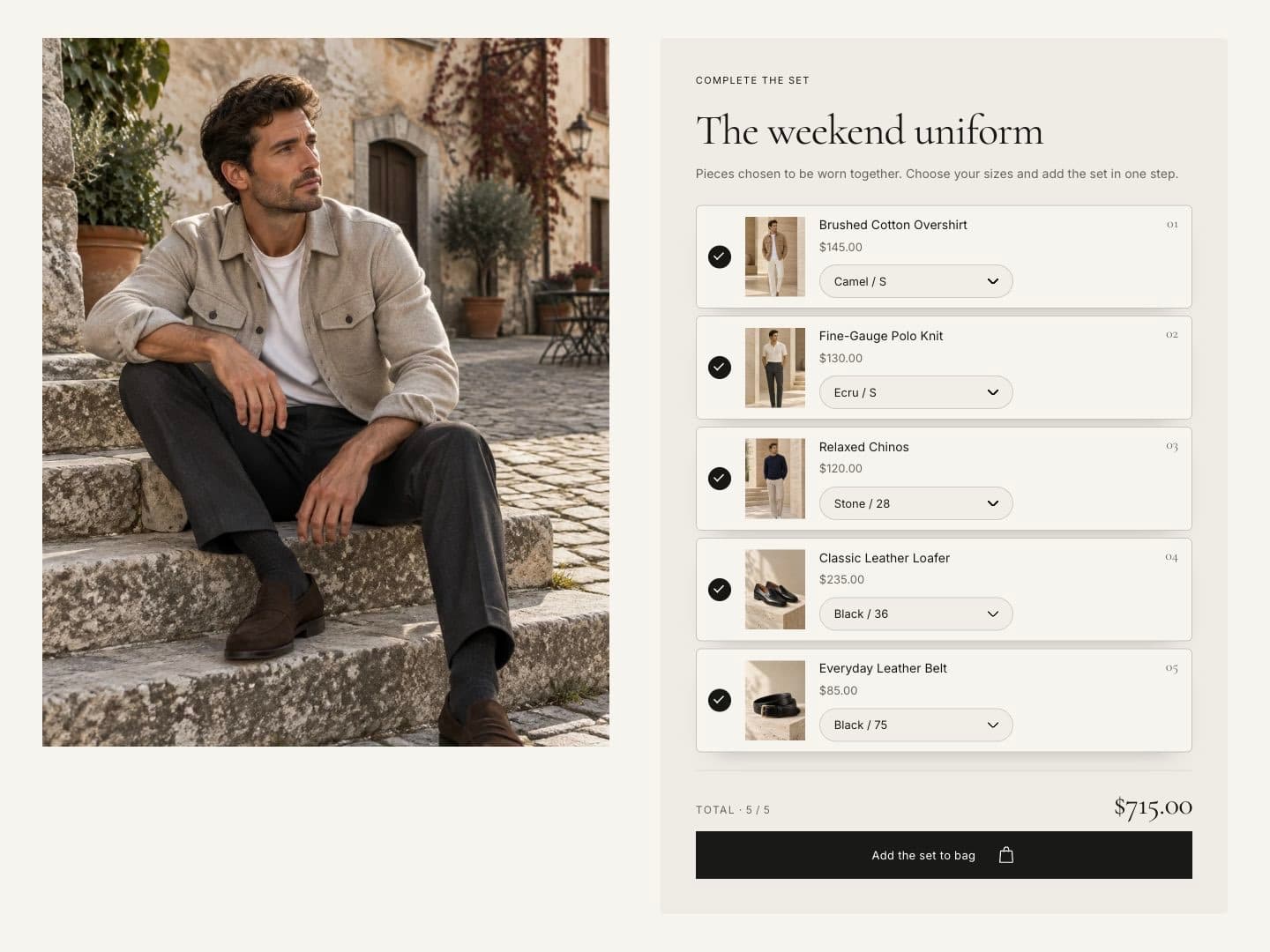
Product bundle
Select products to sell together. Customers tick the products they want and add them in one click; the total updates as they choose. Use Note under the button to mention an automatic discount you set up in Discounts.