Collections, search and cart
Collection pages
Product grids float at three depths as the page scrolls. The Collection space section on the collection template sets:
| Setting | What it does |
|---|---|
| Show description, Show collection image | The collection’s description and image in the page head. |
| Enable filtering and sorting | Shows filters and sorting. Filters come from the Search & Discovery app. |
| Products per page | 8 to 48. |
| Columns on desktop | 2 to 5. |
Filters are laid out by type: colors as a palette, sizes as a grid and everything else as a list, one group open at a time.
Quick add
With Enable quick add on in Theme settings › Product, every product card gets a button. Products with one variant go straight to the cart; products with options open a sheet where shoppers choose and add.
Search
The search page uses the same filters, sorting and columns as collections. Below the results you can add any section; the Mars preset adds a Collage and a Product ring.
Shoppers can also search from any page: Search in the floating controls, or ⌘K / Ctrl+K, opens the command menu. Products, collections and pages appear as they type; arrow keys move and Enter opens.
Collections list
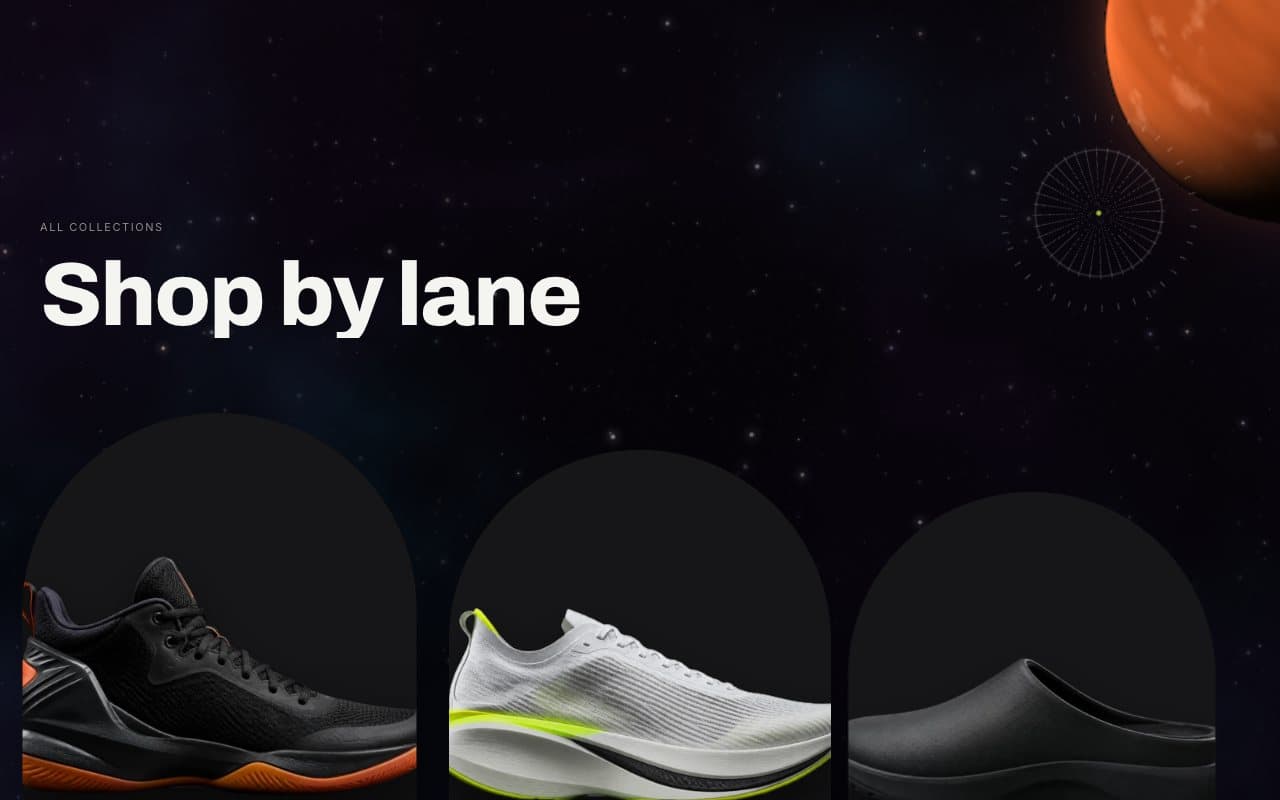
The Destinations section shows every collection as a doorway on /collections. Add Portals or Flip cards below it to feature some collections.
Cart
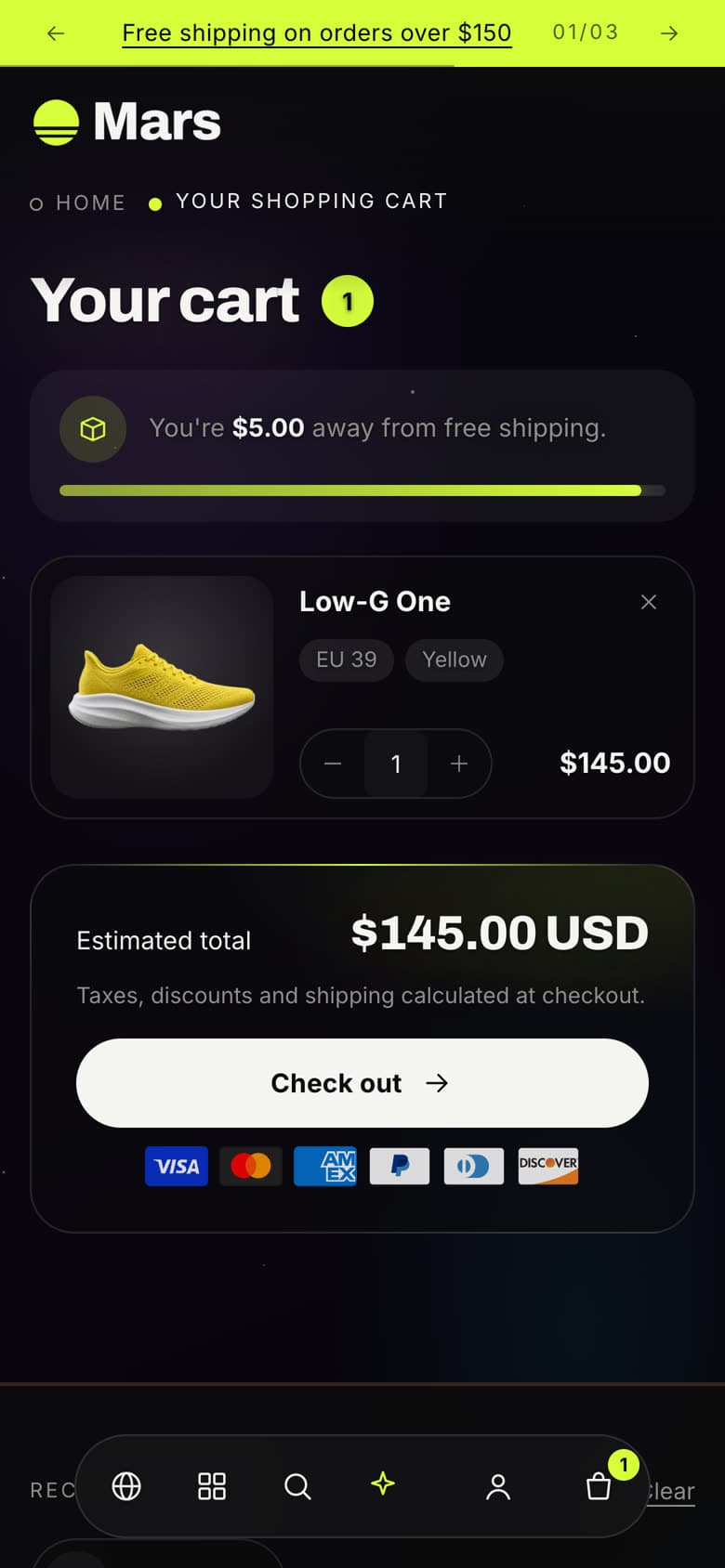
Set the cart in Theme settings › Cart:
- Cart space (drawer) opens over the page after adding a product, with the subtotal, checkout and suggestions; Cart page sends shoppers to /cart.
- Enable order notes for gift messages or delivery instructions.
- Free shipping goal shows how much is left to free shipping. Set it to 0 to hide.
- Suggestions in the cart space come from the collection you choose, or from all products.